February 5, 2026
The “Optimize gallery” dialog now features new sorting options by file size. In addition, unused images can be deleted more quickly.

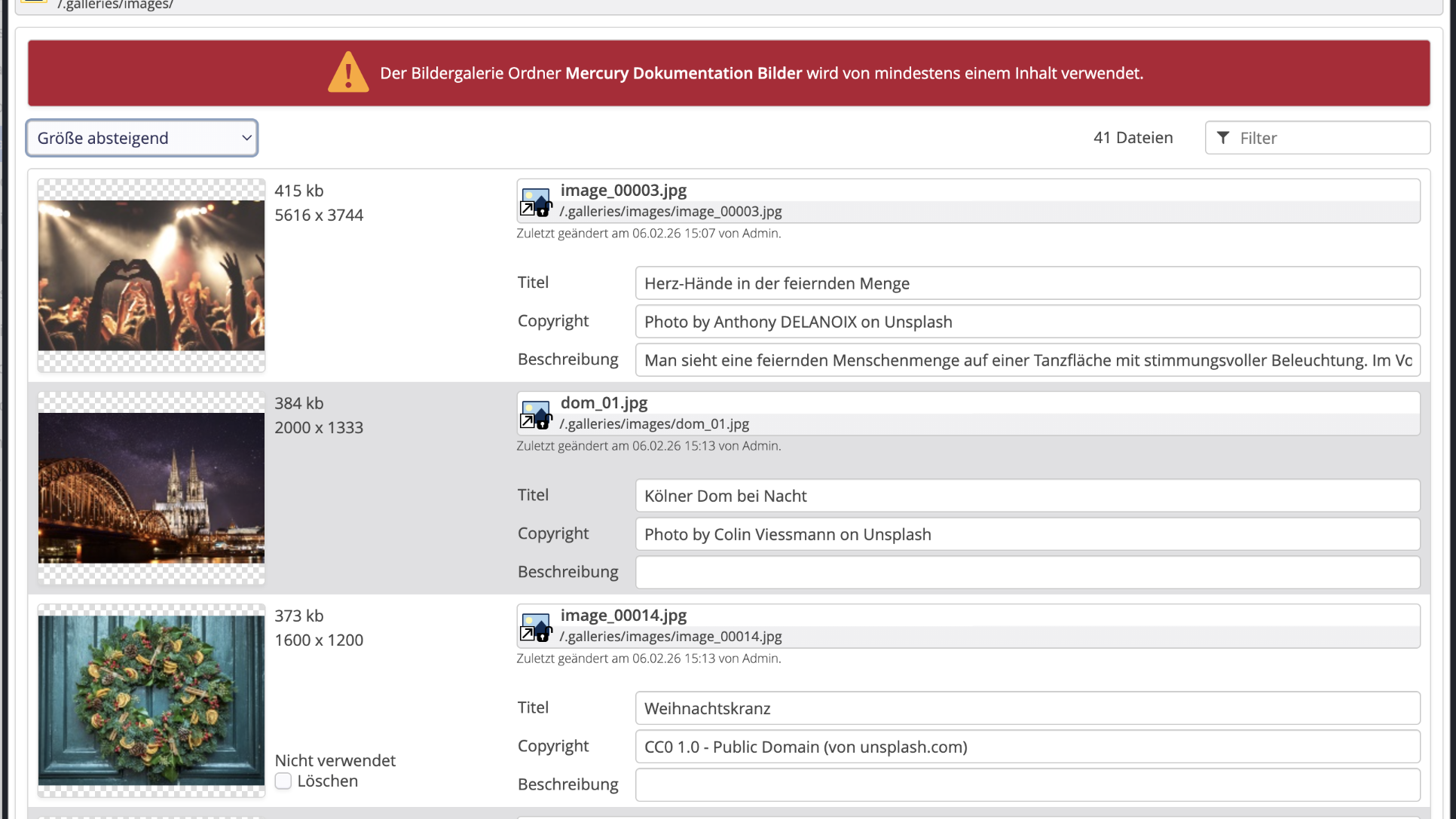
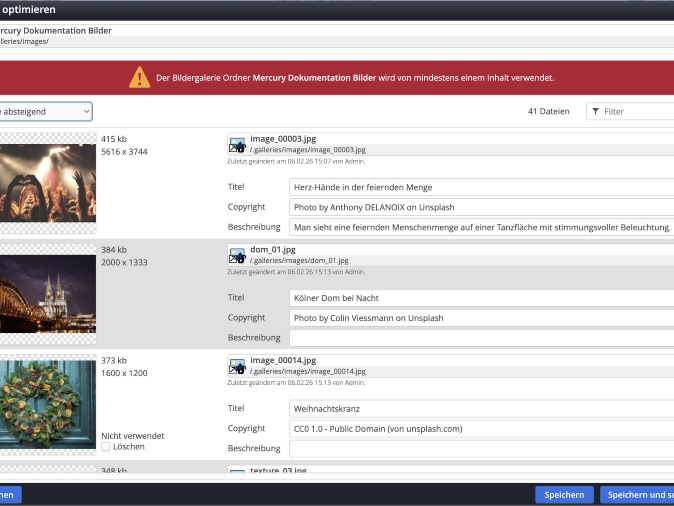
The "Optimize gallery" dialog now offers two additional sorting options: "Size ascending" and "Size descending."
With these options, the files contained in the gallery can be specifically sorted by their actual file size (e.g., in kilobytes or megabytes). When sorting ascending, the smallest files are displayed first. When sorting descending, the largest files are shown first accordingly.
Important note: The important factor is only the storage size of the file on the data storage, not the image dimensions in pixels. E.g., an image with high resolution may have a smaller file size than an image with lower resolution if it is more heavily compressed.
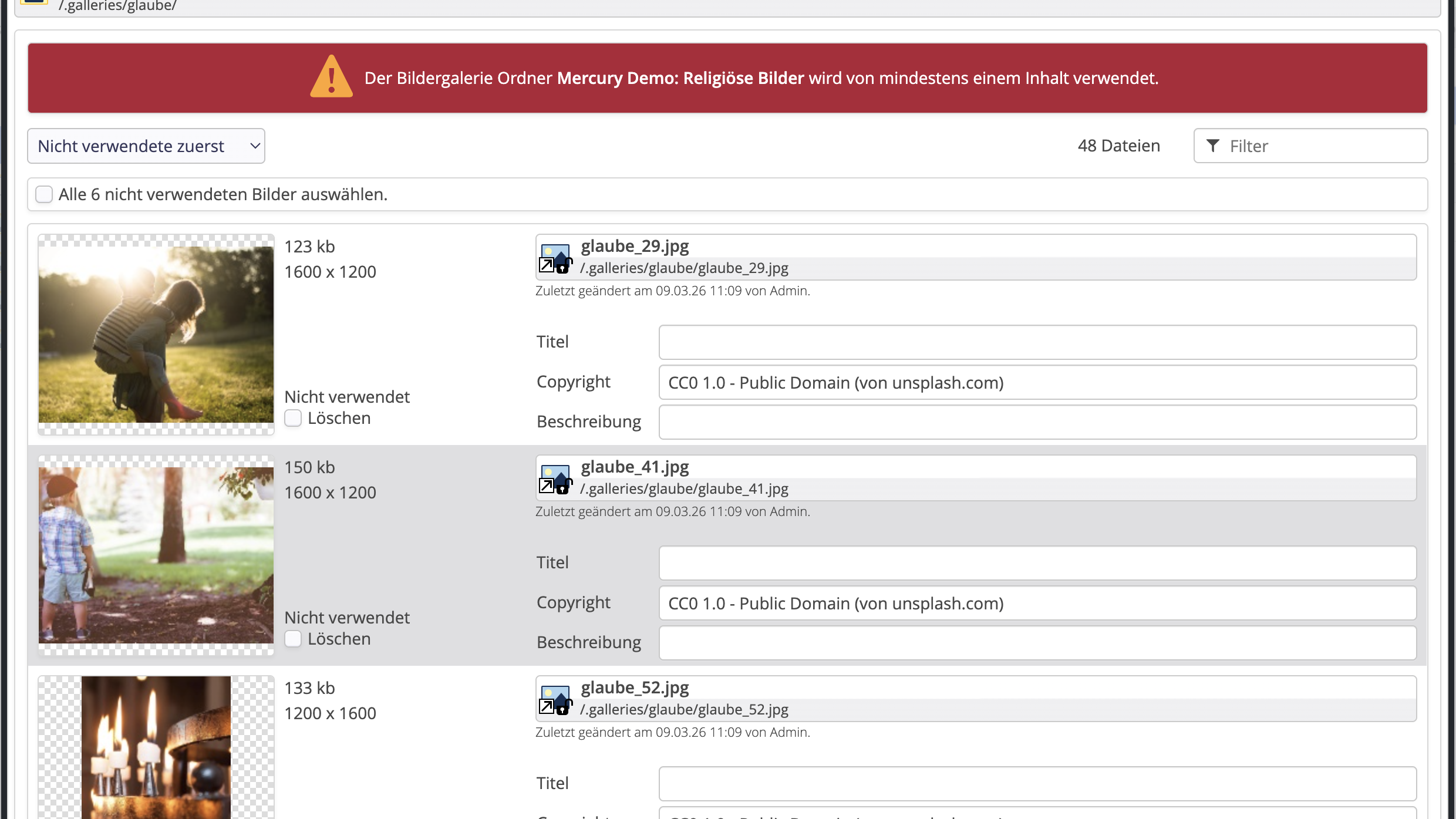
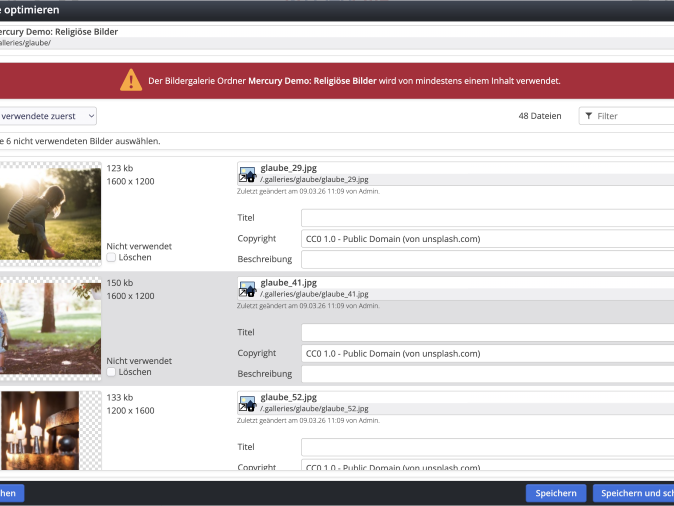
When filtering images by “Unused first” in the “Optimize gallery” dialog, all unused images can be marked for deletion at once by clicking the “Select all x unused images.” option.
After making your selection, click “Save” or “Save and exit” to delete the marked unused images immediately.